

Your first campaign with Jangle, step by step
From a fresh install to a live Autumn Sale on your store — then everything beyond the first campaign.
Before you start
Install Jangle from the Shopify App Store and open it from your admin (Apps → Jangle Sale Campaigns & Badges). This is what you see the first time: an empty dashboard with a setup guide that walks you through three steps — activate the app embed, draft your first campaign, launch it — and, before the launch, an optional one: turning on analytics, so Analytics shows how each campaign does.
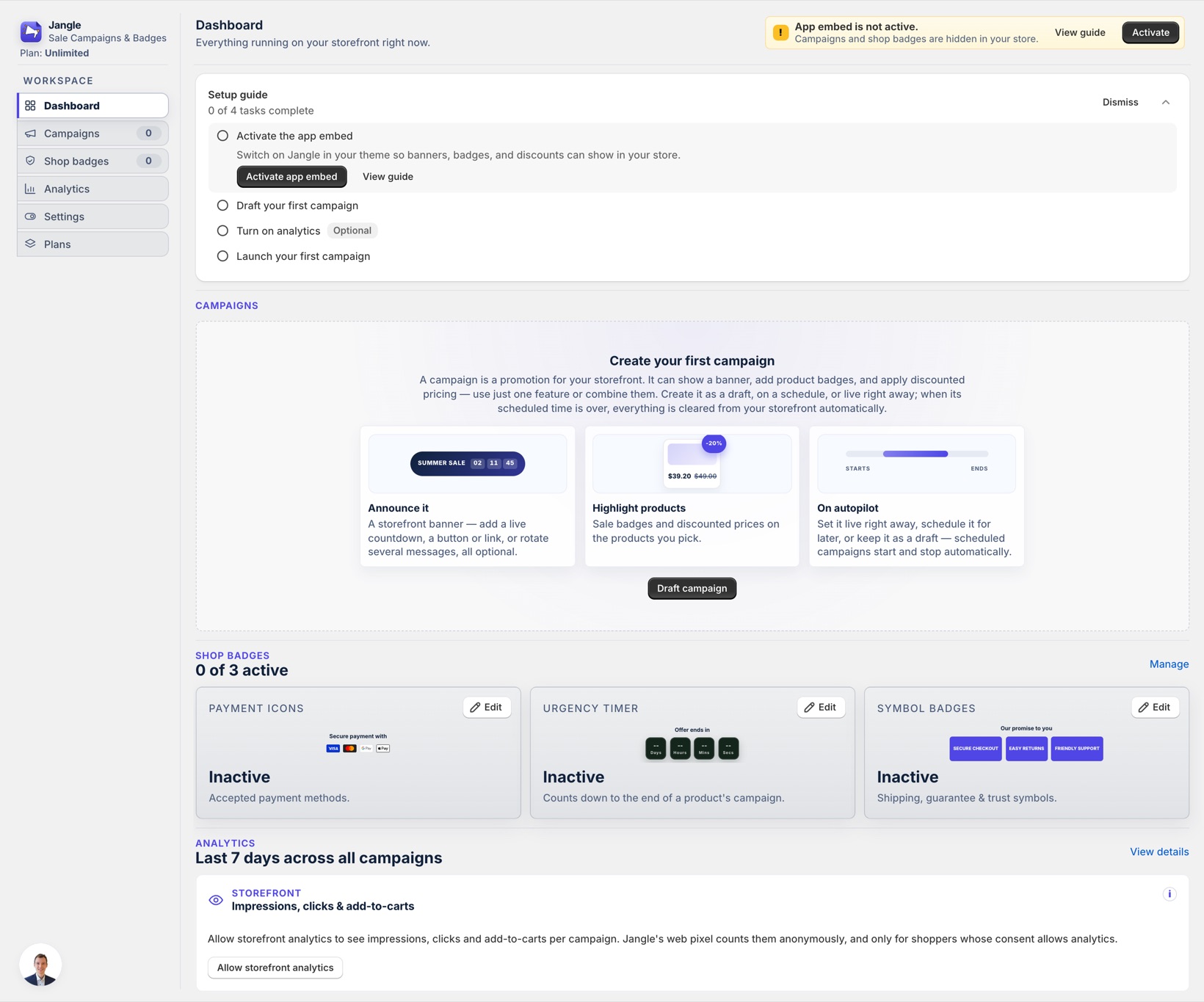
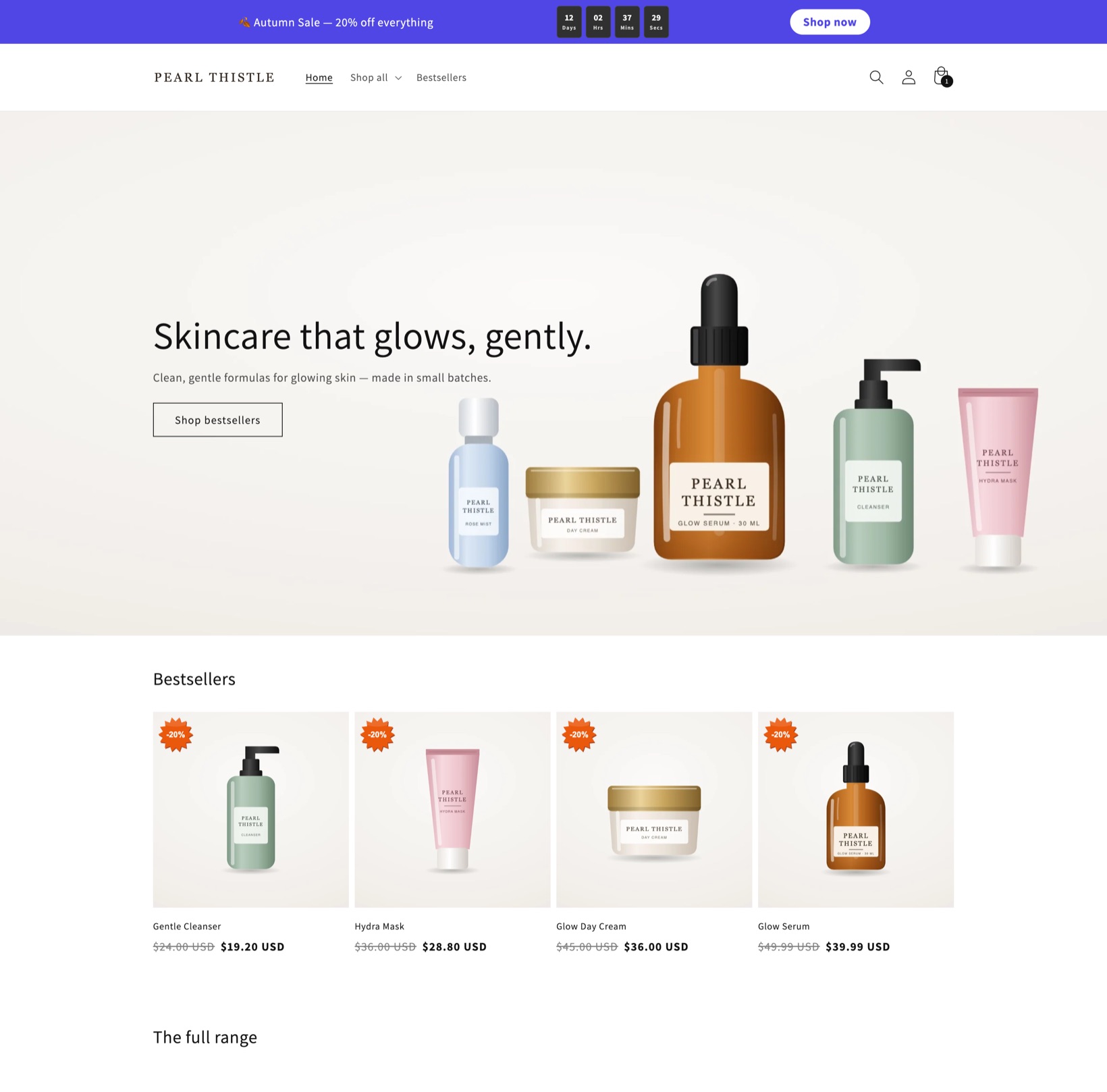
This guide follows exactly those steps and builds one real campaign along the way: an Autumn Sale with 20% off everything — a banner across the store, a sale badge on every product, the reduced price, and a countdown to the end of the sale.
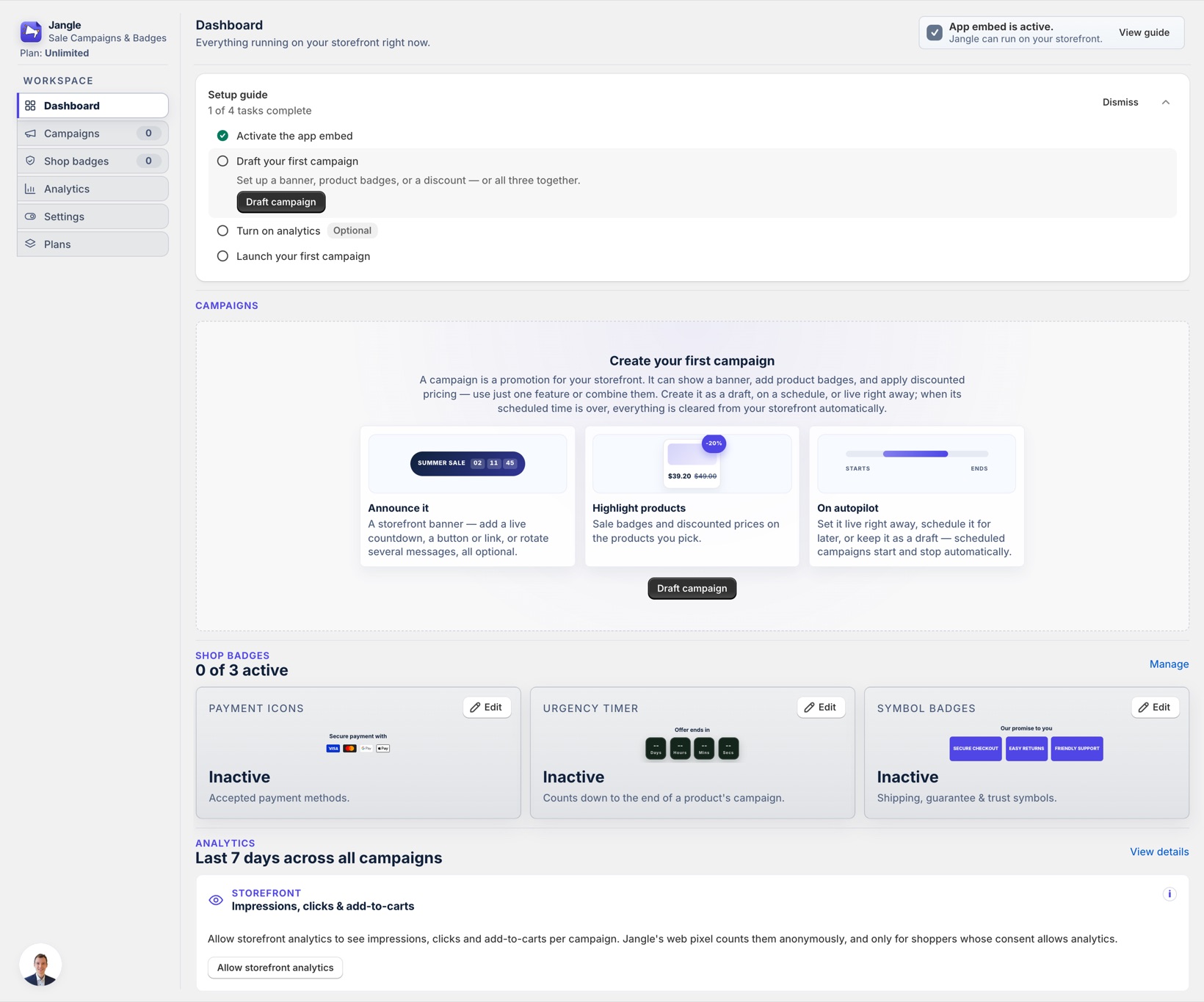
Activate the app embed
The app embed is what shows banners, product badges, discounts and shop badges on your theme — no code and no theme editing.
- In the setup guide, click Activate app embed. Shopify's theme editor opens with Jangle already switched on.
- Click Save in the theme editor and come back to Jangle.
Create the campaign
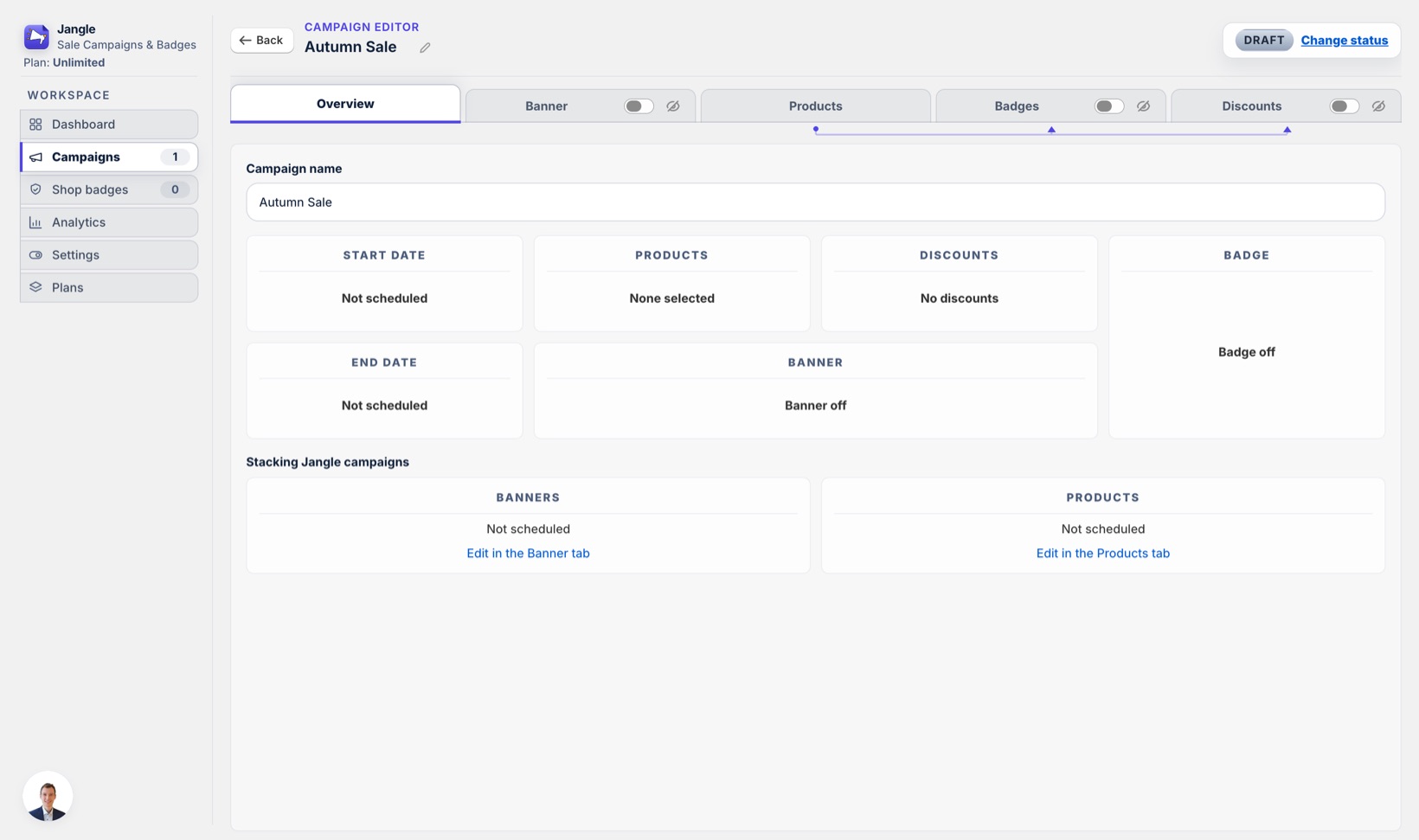
A campaign is one coordinated promotion: its banner, badges, discount, targeting and schedule are built together and go live — and end — together.
- Click Draft campaign — in the setup guide, on the dashboard or on the Campaigns page. The new campaign opens in the campaign editor as a draft: nothing shows on your store until you launch it.
- On the Overview tab, name it Autumn Sale.
Add a banner
The banner is the announcement bar shoppers see across your store.
- Open the Banner tab and switch it on.
- Click Choose preset and pick Complete static — text, a countdown and a button in one bar (countdowns come with the Growth plan).
- Write the content — “🍂 Autumn Sale — 20% off everything” — and set the button to Shop now. Colours, sizes and motion can differ on desktop and mobile.
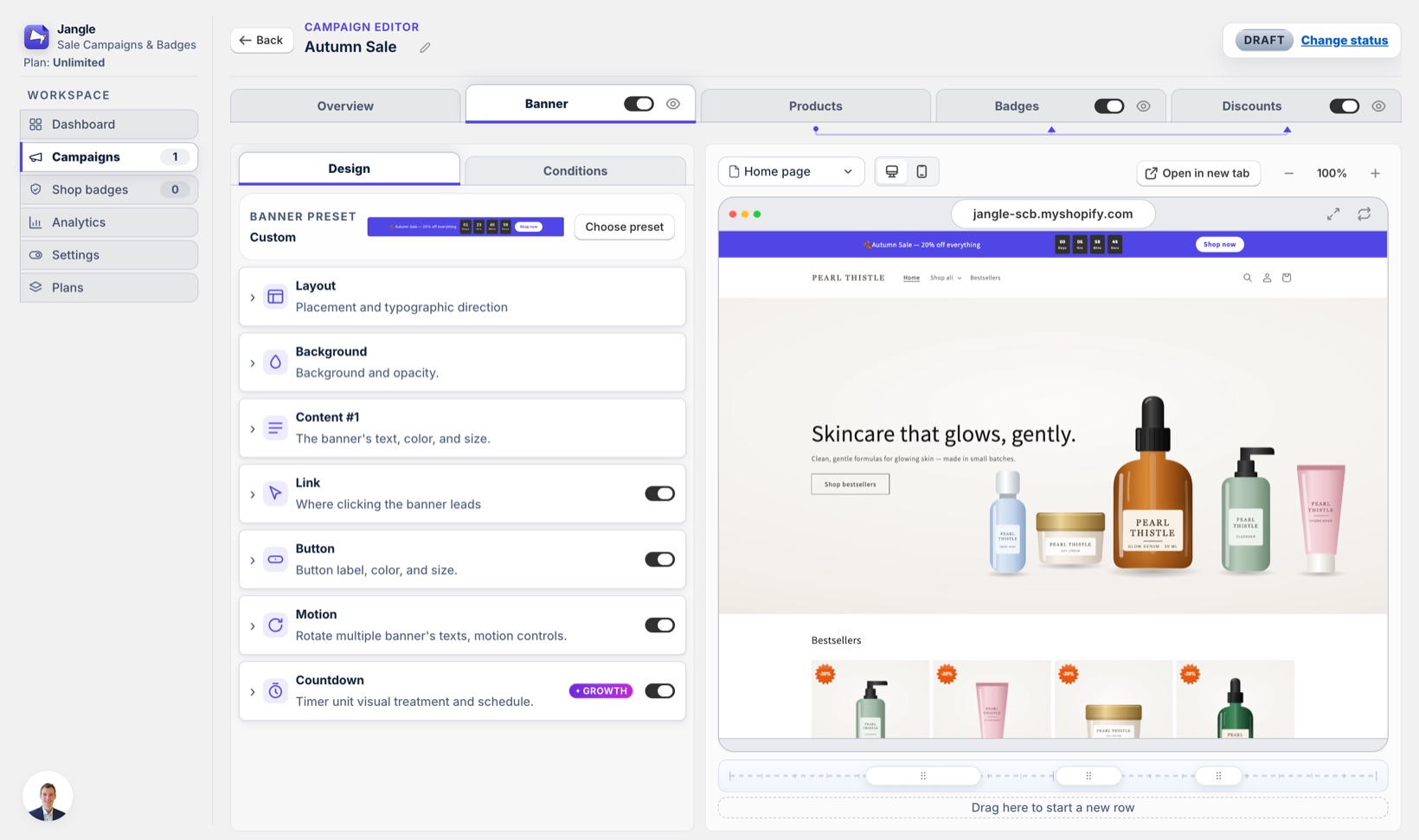
Ten ready-made layouts combine text, a button, a countdown, rotating slides or a scrolling ticker. Place the bar at the top or bottom — optionally sticky — or inside your theme with a Jangle banner block, and translate its text for every storefront language. Images you upload are saved to your store's Shopify Files (names start with “jangle-”).
Choose the products
The products decide where the campaign's badges and discounts show.
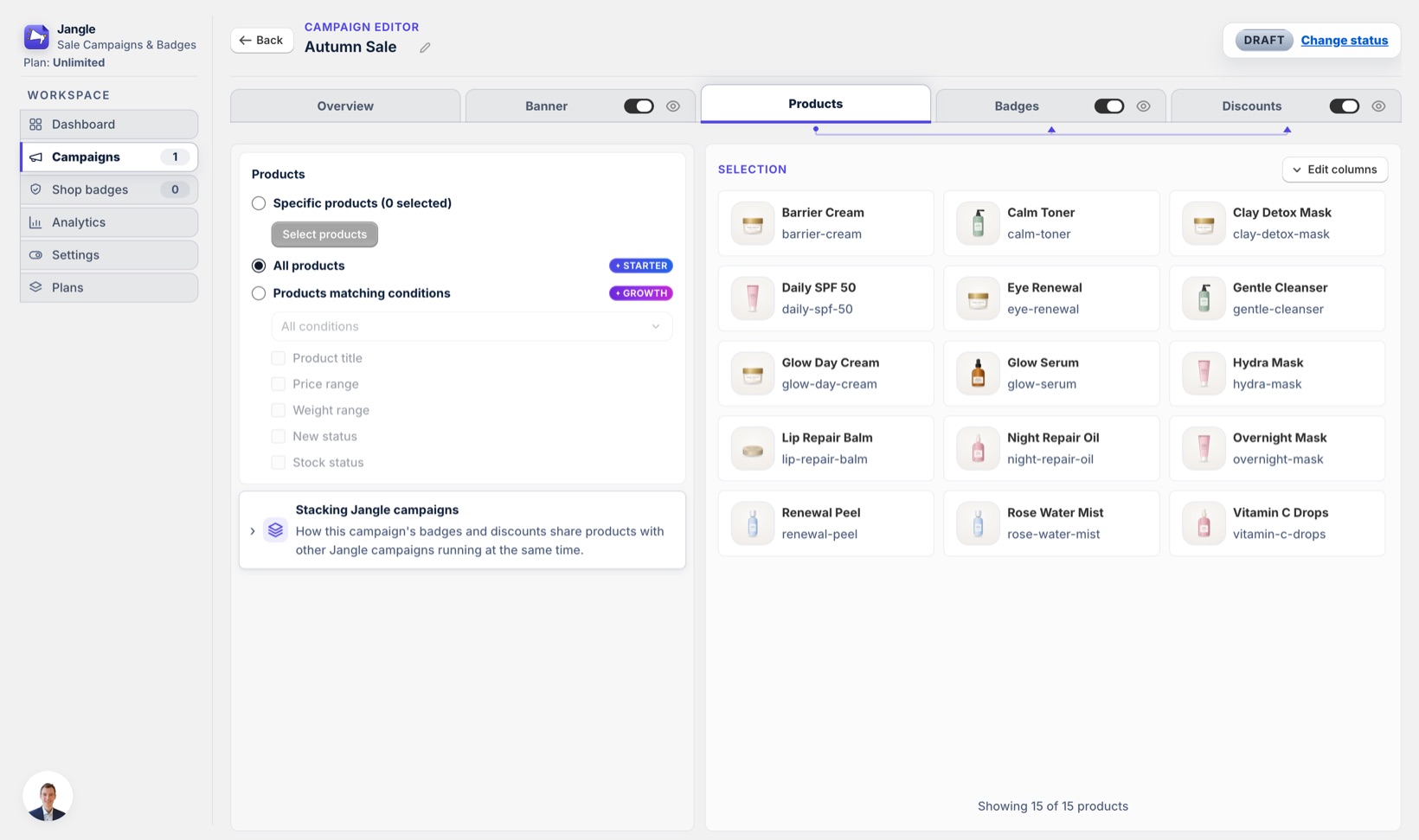
- Open the Products tab and choose All products — it's a store-wide sale (Starter plan and up; on Free, pick up to 20 products by hand).
- For a narrower offer, pick Specific products from your full catalog, or let Products matching conditions choose them by title, price, weight, “new” or stock (Growth plan).
Add a product badge
Badges are the labels on product images and cards — they make the offer impossible to miss wherever the product appears.
- Open the Badges tab and switch it on.
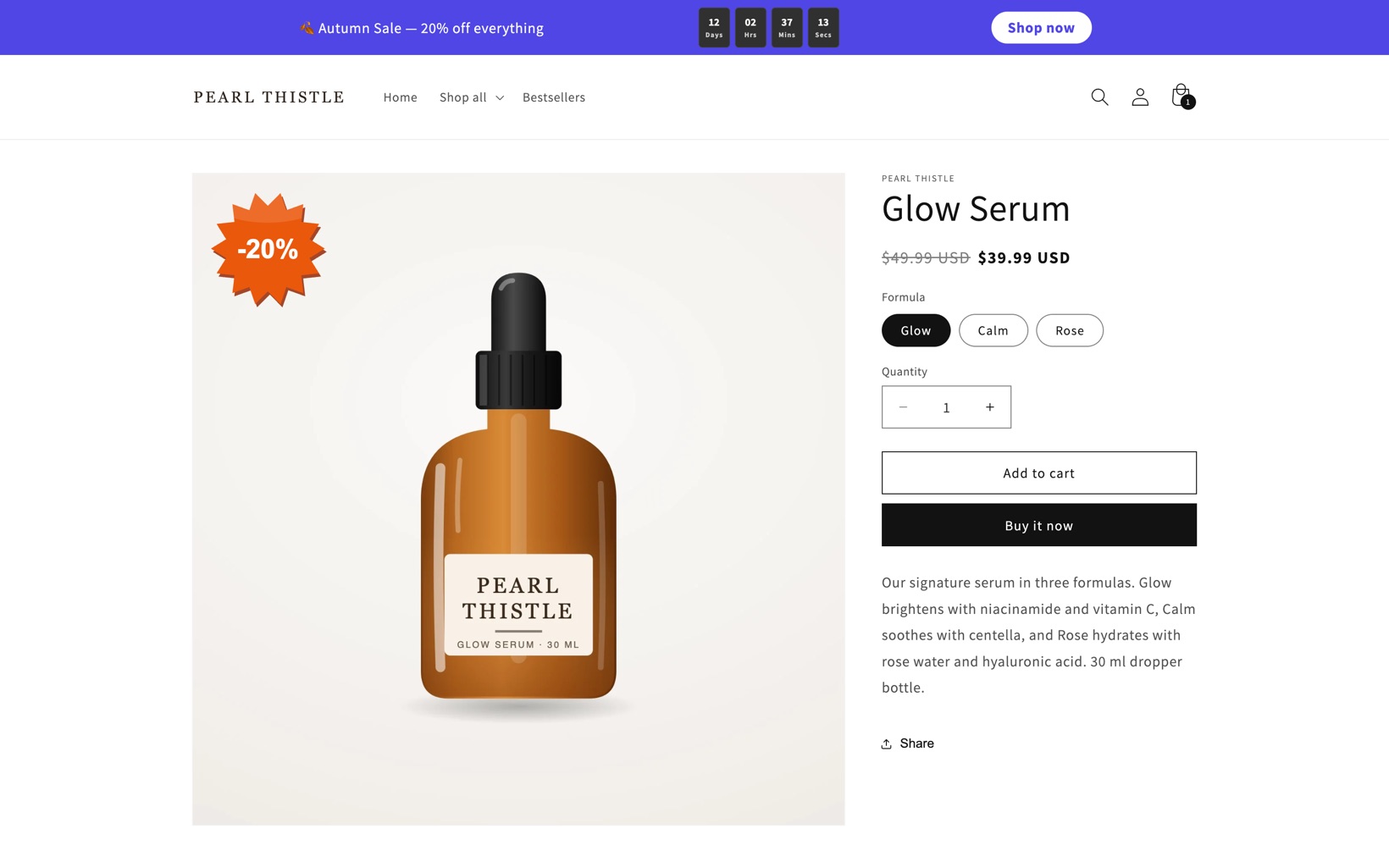
- Click Change design, open Discounts and pick the Starburst — it shows each product's own discount, here −20%. Then set its position and size.
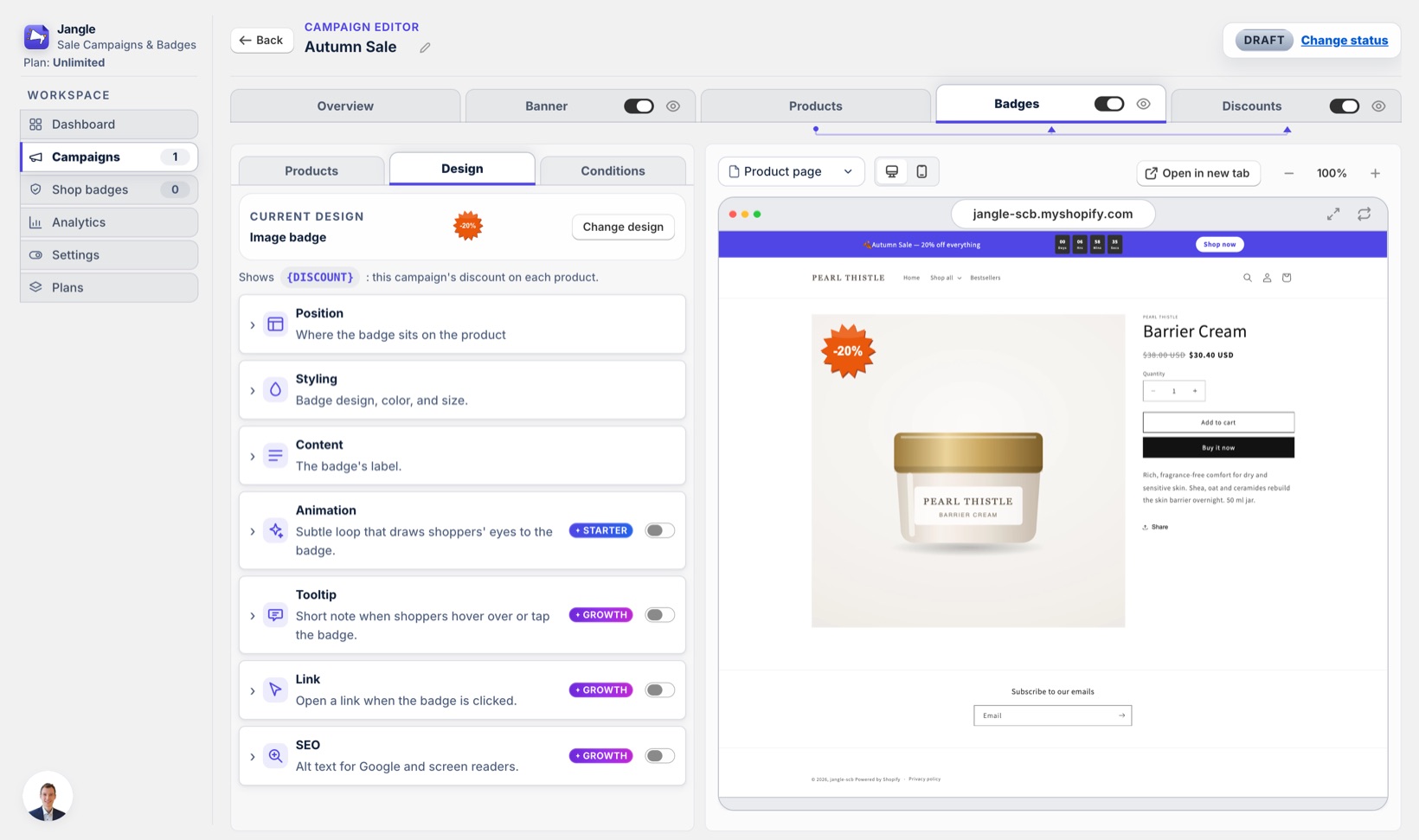
Choose from text badges on 14 shapes, icon badges (22 icons) or image badges (236 designs, or your own image). With AutoText, one text fills in each product's numbers — {DISCOUNT_PERCENT} off becomes “20 % off”, {NEW_PRICE} the discounted price. Animations come with Starter; tooltips, links and SEO alt text with Growth.
Attach the discount
The discount makes the price on the badge true: shoppers pay what the store shows.
- Open the Discounts tab and switch it on.
- Keep Automatic discount and set 20% under Campaign rules.
- Under Styling, decide how the price looks: the struck-through original price, and an optional label chip (Starter plan and up).
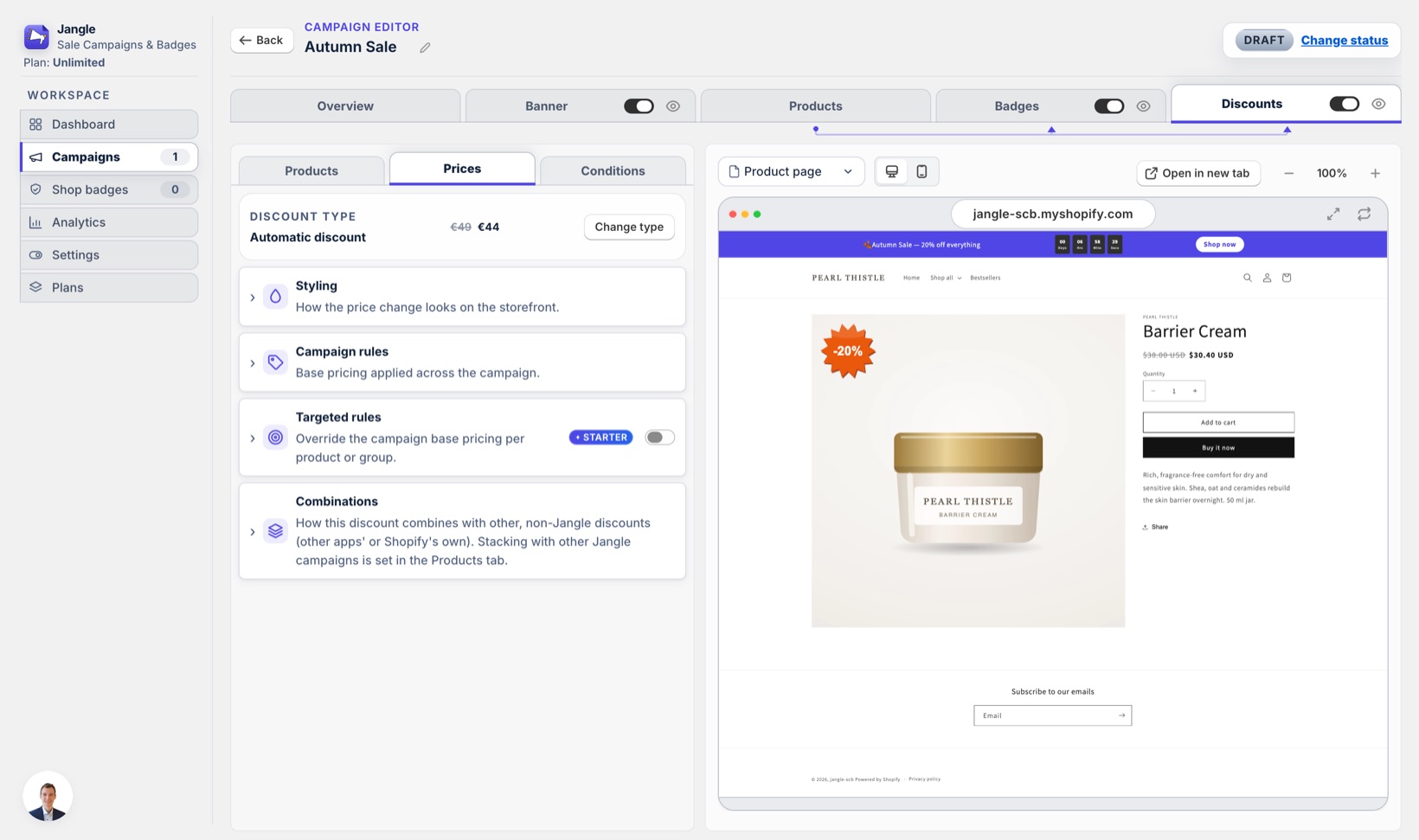
A discount code works too (Starter plan and up) — shoppers then enter it at checkout and prices stay as they are until they do. Take a percentage or a fixed amount off, set different amounts per product, collection, type, tag or vendor with targeted rules (Starter plan and up), and choose which other discounts it may combine with.
Targeting (optional)
Each piece has a Conditions tab that decides where it shows and who sees it. The Autumn Sale runs for everyone everywhere, so you can skip this step.
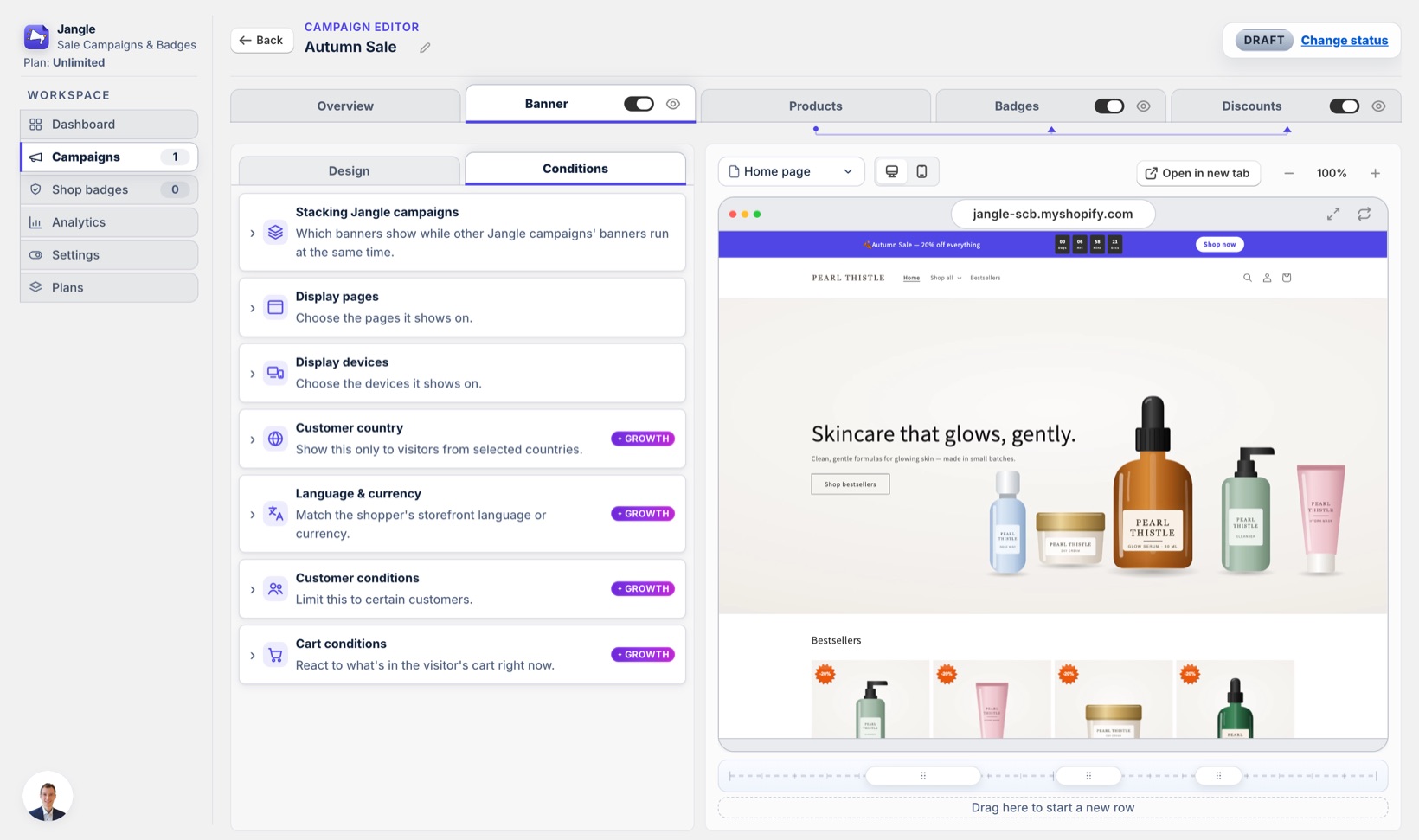
- Pages and devices — home, product, collection, search, cart or custom pages; desktop, mobile or both.
- Countries, language & currency — show offers only in the markets you choose.
- Customers and cart — logged in or guests, tags, first-time or returning, B2B, lifetime spend; the cart's value or number of items.
Conditions stack into one rule — “product pages, on mobile, in Germany”. Storefront rules are checked on the page and a discount's rules by Shopify at checkout: Jangle never stores shopper data.
Go live
Back on the Overview tab, the campaign sums up everything it will show. When it looks right, launch it.
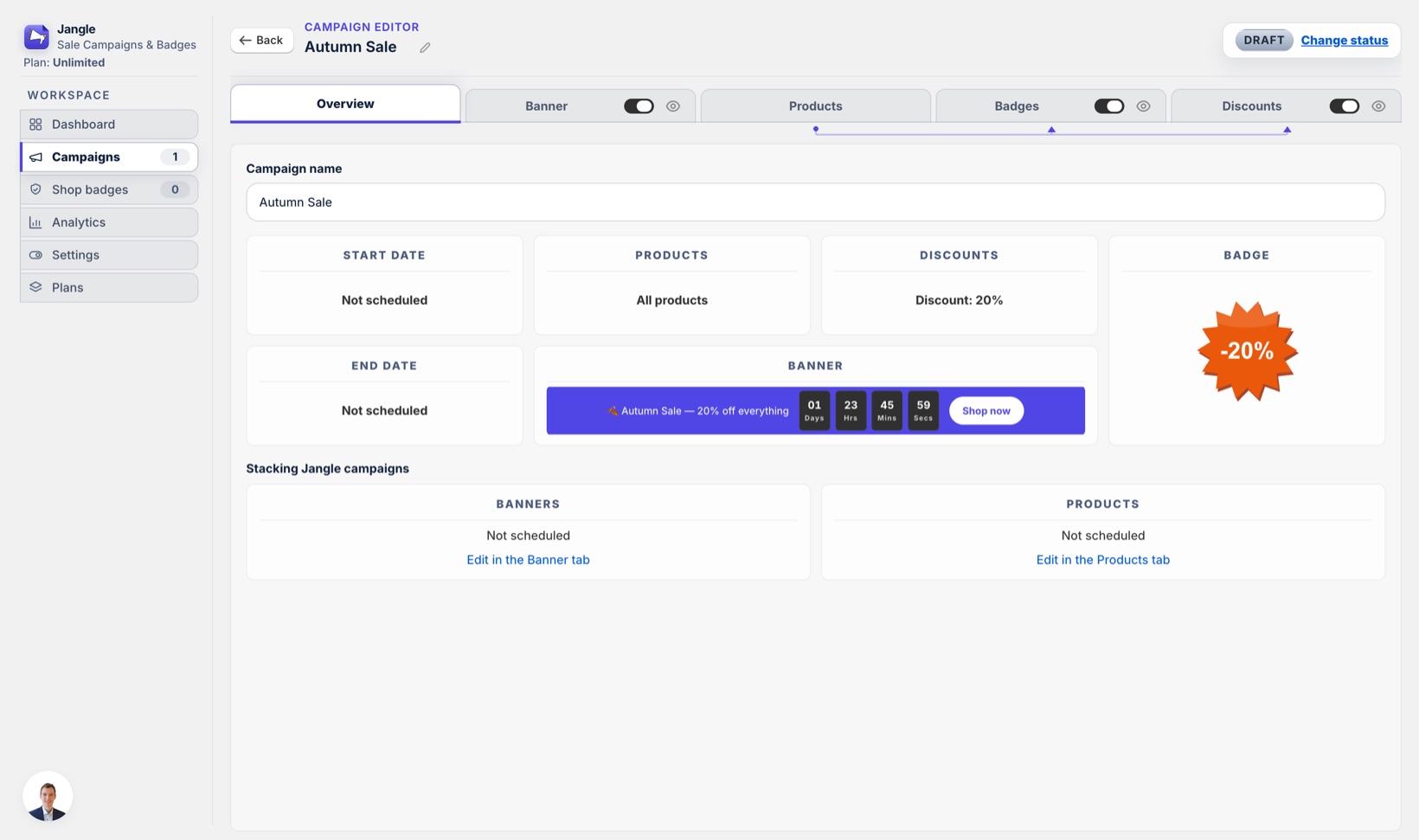
- Click Change status at the top right.
- Choose Live to start right away — or Scheduled to start later — then confirm the end: a date and time, or open-ended. Repeat it on chosen weekdays or add several time frames if you need to.
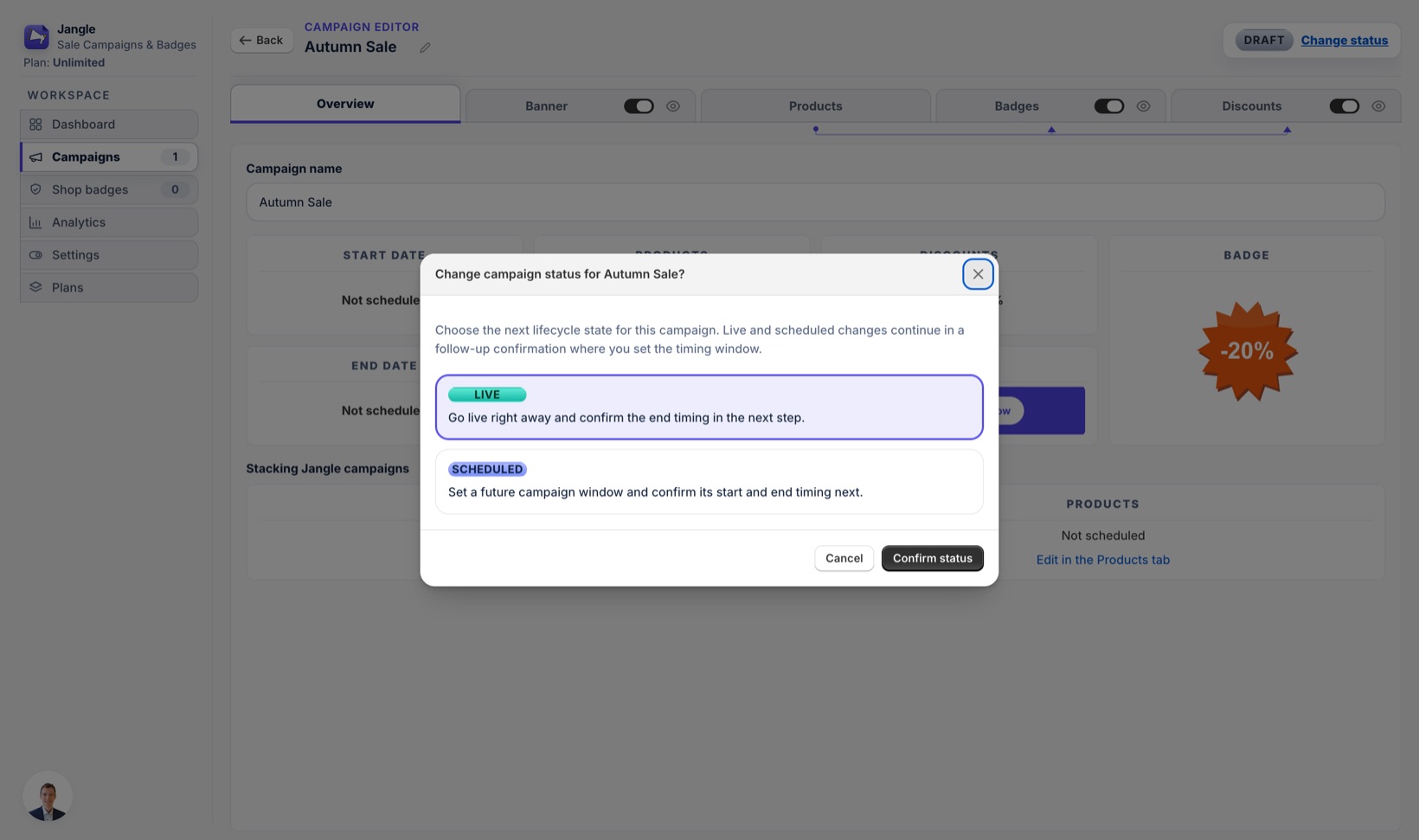
From then on Jangle takes over: Scheduled turns into Live at the start, and Live into Ended at the end — banner, badges and prices appear and disappear on their own, and the discount is removed from Shopify.
Before the launch, the setup guide also offers an optional step, Turn on analytics, with the same two choices as Settings — a button each, and Shopify asks you to confirm each: storefront analytics — Jangle's web pixel counts impressions, clicks and add-to-carts, anonymously and only for shoppers whose consent allows analytics — and orders and revenue, read from your store's orders. Allow one or both; Jangle keeps only totals — never an order or a customer's details. Turned on before the launch, the campaign is counted from its start. Not now? Click Skip; you can allow each one any time in Settings or on the Analytics page.

The result on your store
Open your store: the Autumn Sale shows everywhere at once — and it will end on time without you touching anything.
Plan more campaigns
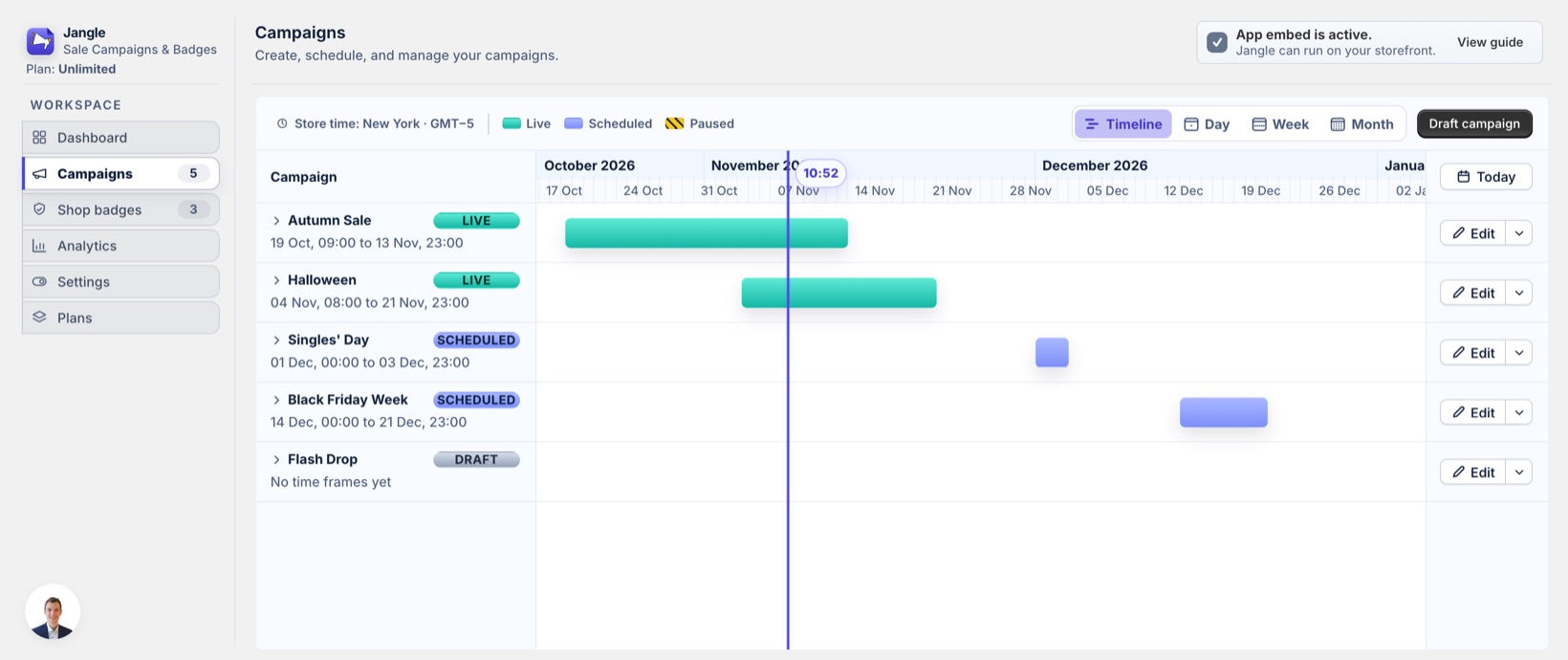
The Campaigns page lays every campaign on one timeline, so you see overlaps before they happen.
Schedule ahead
Line up seasonal sales, drops and restocks weeks in advance with Change status → Scheduled: several time frames, repeats on chosen weekdays, open-ended runs. Jangle starts and ends each campaign on time, in your store's time zone. Pinch or scroll over the Timeline to see a few days or several months.
Overlaps & stacking
When campaigns share products or run banners at the same time, Jangle shows each overlap before you save and you decide: which campaign keeps the shared products and which banner shows. On Unlimited, campaigns can also stack — several banners at once, and several badges and discounts on one product.
Shop badges
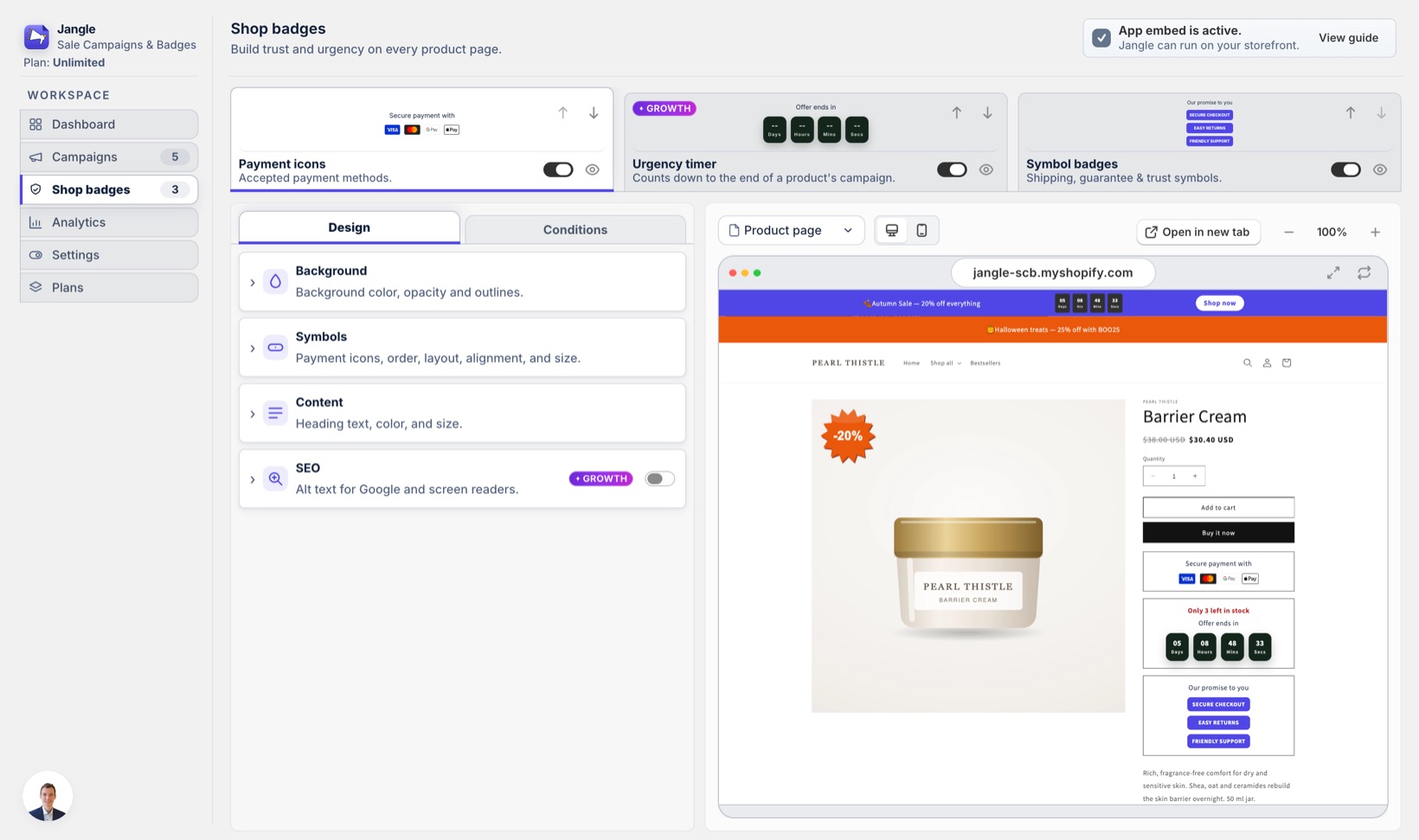
Shop badges build trust and urgency on every product page, next to the buy buttons.


Payment icons
The payment methods you accept — Visa, Mastercard, Google Pay, Apple Pay and more — in the order you choose, so shoppers know at a glance how they can pay.
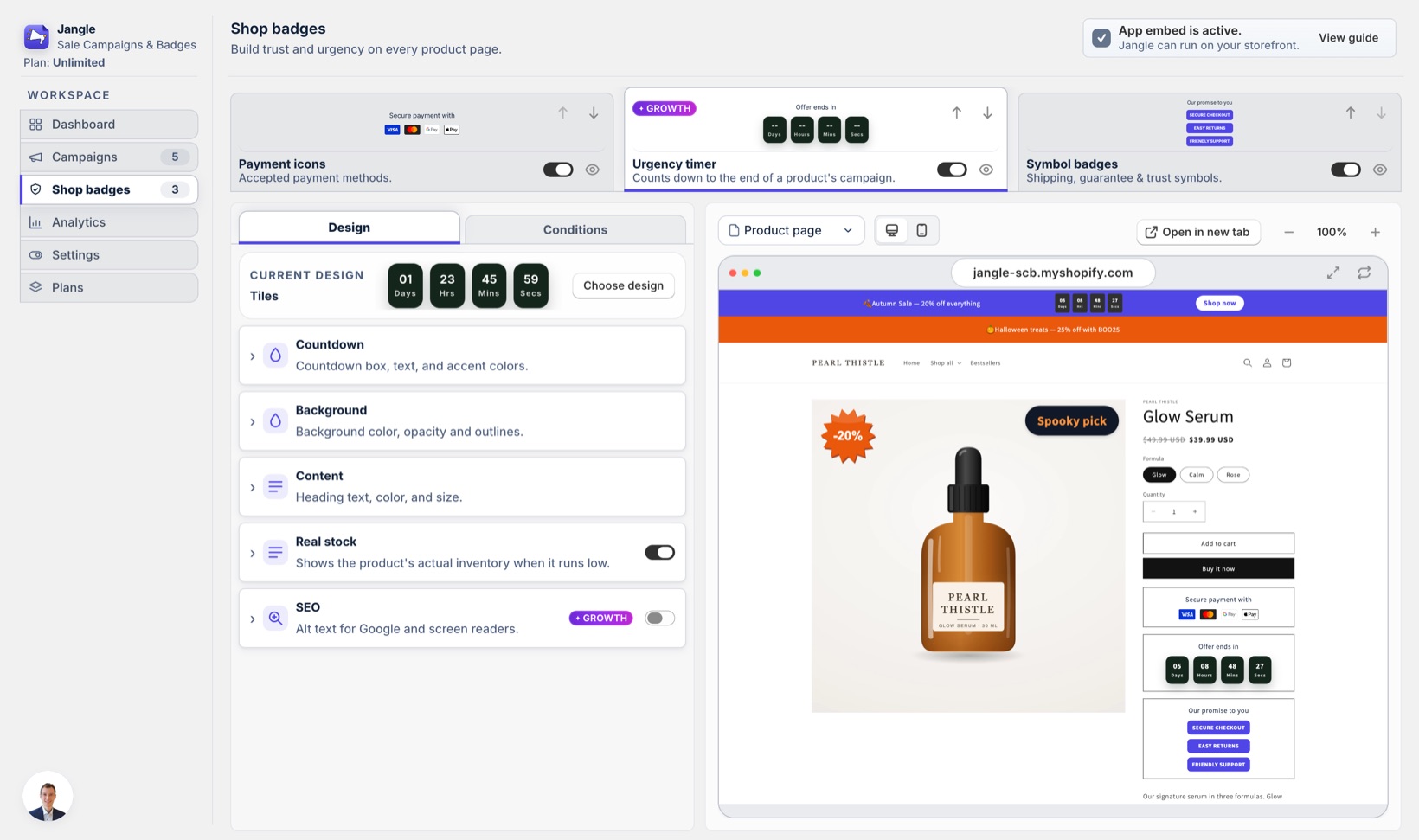
Urgency timer
A countdown right by the buy buttons to the end of the campaign running on that product — the one ending first if several run (Growth plan). It is hidden on products without a running campaign, so it never shows a deadline that isn't real. Optionally it adds the product's real stock when it runs low.
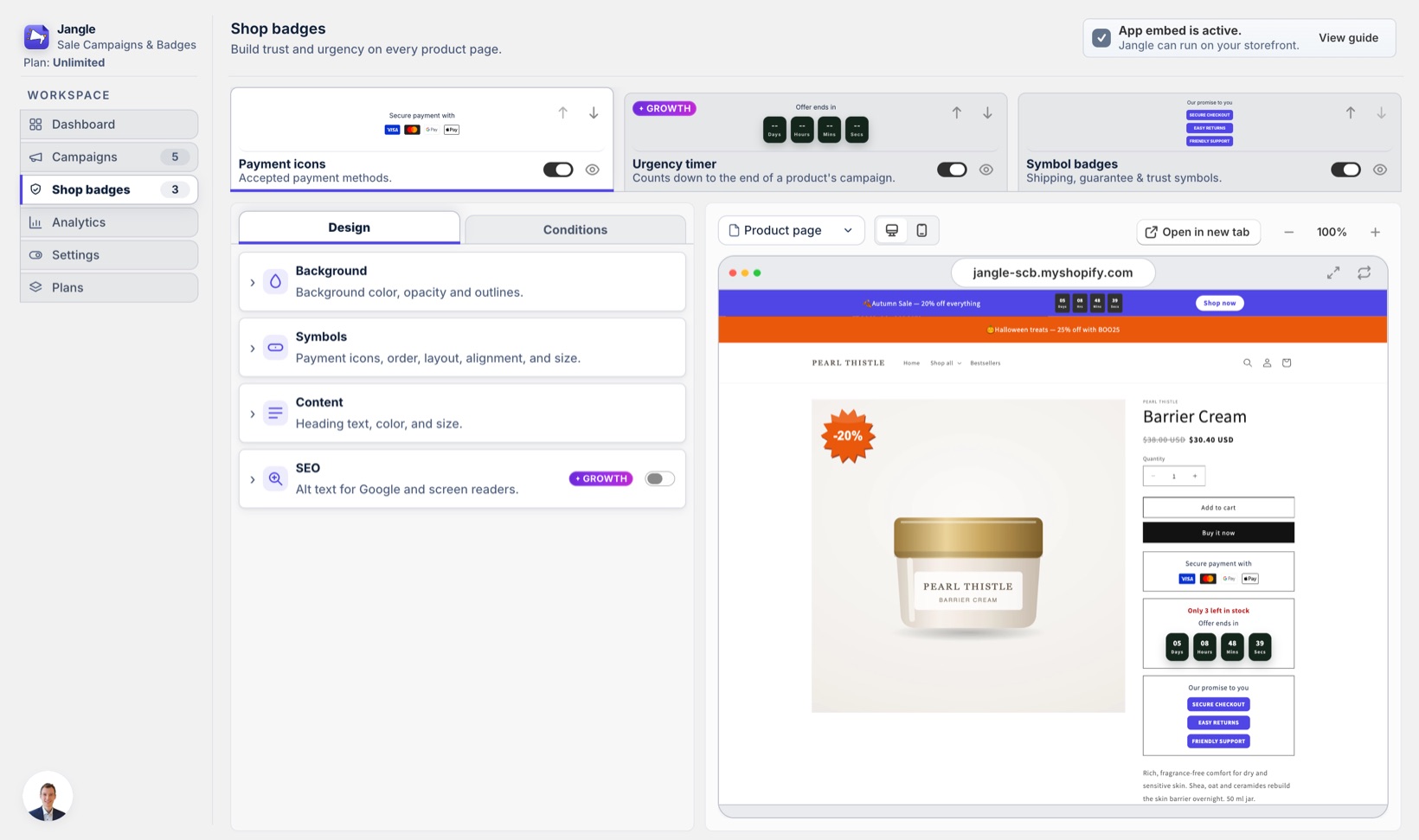
Symbol badges
Reassurance at the moment of decision: free shipping, easy returns, guarantees, secure checkout and more — each a symbol with your own short text, in a row or a grid.

Switch each badge on, then fine-tune it: the Design tab sets background, symbols, text and SEO alt text (Growth), the Conditions tab where it sits and who sees it — against a live preview of your product page.
Analytics
See what your campaigns achieve — per day or accumulated, for the entire shop, all campaigns, campaigns with a discount, or a single campaign.
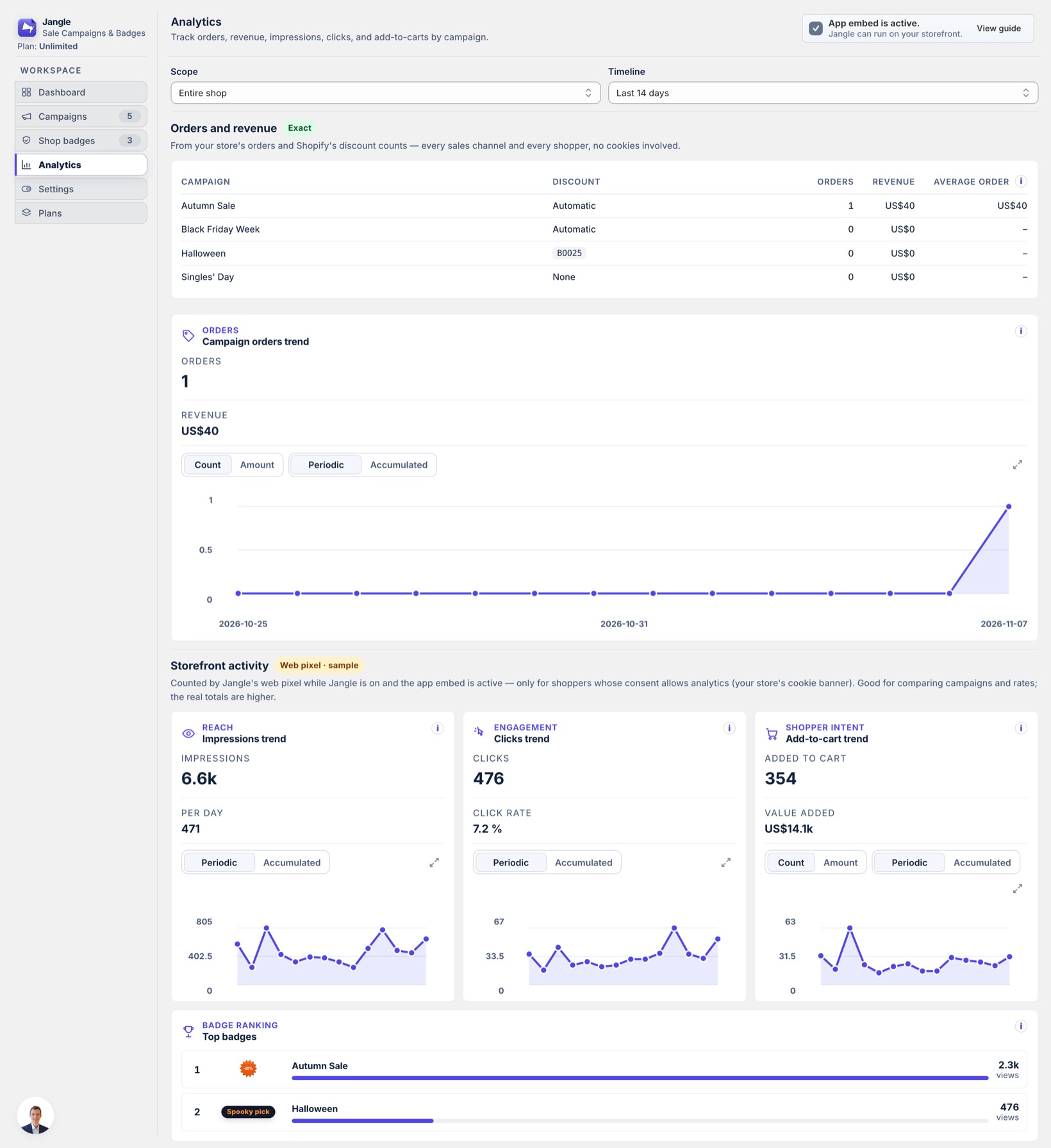
- Views, clicks and add-to-carts — clicks on banners and badge links, with the click rate and the value added to carts.
- Top badges — which product badges lead to the most product-page views.
- Orders and revenue — per campaign for the selected timeline, read from your store's orders once you allow Jangle to view them: campaigns with a discount count the orders that used it, campaigns without one the orders placed while they ran that contain their products. Exact for every sales channel; an order counts once in the total. Until you allow it, the card shows no numbers — just what it adds and the button. Changed your mind? Settings → Orders and revenue → Stop access: Shopify removes the permission and Jangle no longer reads your orders.
- Views, clicks and add-to-carts are counted anonymously by Jangle's web pixel, once you allow storefront analytics (the setup guide, Settings or the Analytics page), and only for shoppers whose cookie consent allows analytics — Jangle stores no shopper data. Stop access in Settings removes the pixel.
- For both, Jangle works as your processor under its data processing agreement, which you accept with the terms when you install the app; it keeps only daily totals, never an order or a customer.
No counts arriving?
Views, clicks and add-to-carts reach Jangle through your store's App Proxy URL for Jangle, /apps/jangle-scb by default. Shopify lets you change that URL (Settings → Apps → Jangle → App Proxy URL). If you do, the counts stop until Jangle knows the new one — your banners, badges and discounts keep working either way.
- Changed it? Enter the new URL under Settings → App Proxy URL in Jangle (Starter plan and up). Jangle shows it as confirmed with the first storefront visit that arrives through it.
- On the Free plan, or if you'd rather not keep two settings in step: set the URL back to
/apps/jangle-scbin Shopify. - After two days without counts while Jangle is running, the Dashboard and the Analytics page say so and link to the setting. Check first that storefront analytics are allowed and the app embed is on — without them nothing is counted either.
Ask Shopify Sidekick
Shopify Sidekick, the assistant built into your Shopify admin, can look up your Jangle campaigns, results, and shop badges. Open it from the Shopify admin and ask in your own words — for example, one of the questions below. Changes are still made in Jangle.
- Campaign overview — Every campaign with its status right now, its time frame, and the features it uses.
- “Which Jangle campaigns are live right now?”
- “What sales are scheduled next week?”
- “Do I have any paused campaigns?”
- Campaign details — One campaign in full: time frames, products, banner messages, badge, discount, and stacking.
- “What's the discount in my Autumn sale?”
- “Which products are in the Black Friday campaign?”
- “When does my Autumn sale end?”
- Stacking campaigns — Campaigns running at the same time: which one shows on a shared product, until when, and which banners show.
- “Why doesn't my Autumn sale show on one of its products?”
- “Which products are reserved for another campaign?”
- “Which banners show this weekend?”
- Products on sale — Which campaigns include a product, with their badge and discount — and which one shows right now.
- “Which of my products are on sale right now?”
- “Which campaigns include a specific product?”
- “What discount does a product get right now?”
- Results — Orders and revenue from your store's orders (once you allowed Jangle to view them), impressions, clicks, click rate, badged product page views, and add-to-carts — for the shop or one campaign, with top campaigns, badges and products.
- “How did my Autumn sale perform this week?”
- “How much revenue did my campaigns bring in the last 30 days?”
- “Which campaign got the most clicks?”
- “Which badge brings the most product page views?”
- “How many add-to-carts did Jangle get in 30 days?”
- Shop badges — Which payment icons, urgency timer, and symbol badges are active in your store.
- “Which shop badges are active?”
- “Is the urgency timer on?”
- “When does my urgency timer end?”
- App status — Whether Jangle is on, the app embed is active, your plan and its limits, and campaign counts.
- “Why don't I see Jangle on my storefront?”
- “Which Jangle plan am I on?”
- “How many campaigns can I run on my plan?”
Plans & billing
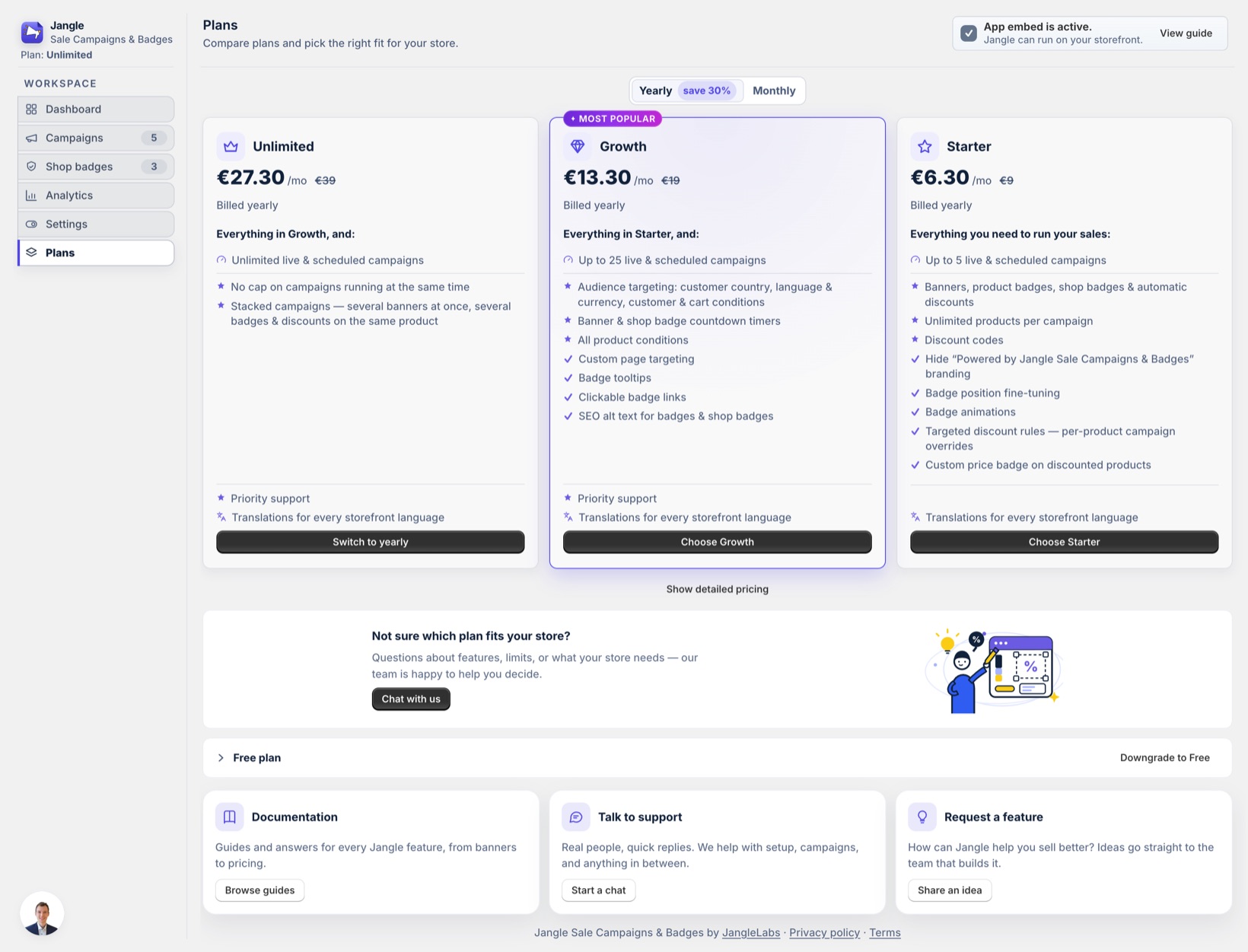
Start on the free plan, upgrade when your promotions take off. Paid plans come with a 3-day free trial (once per store) and are billed through Shopify on your Shopify invoice.
- Free — €0 — up to 2 live or scheduled campaigns, 20 hand-picked products per campaign, banners, badges and automatic discounts.
- Starter — €9/mo — up to 5 live or scheduled campaigns, unlimited products, discount codes, translations and no Jangle branding.
- Growth — €19/mo — up to 25 campaigns, countdown timers, audience targeting and stacking overlapping campaigns.
- Unlimited — €39/mo — everything, with unlimited live and scheduled campaigns.
On Shopify Plus stores the plans cost €29, €39 and €59 a month — Jangle charges the right price automatically. Choose yearly billing to save 30%.
Cancel or uninstall
Both take a click — and there is no theme code to remove afterwards. Jangle never edits your theme, so nothing is left behind in it.
Cancel your plan
- Open Plans in Jangle.
- At the bottom, in the Free plan row, click Downgrade to Free, then confirm.
Your paid plan stays active until the end of the period you've paid for — Plans shows the date — and your store moves to the Free plan then. A started period isn't refunded. Changed your mind before then? Click Keep on your plan in Plans: billing starts again only when the paid period ends — the same for a smaller plan; a bigger plan starts, and bills, right away. Cancelled during the free trial, nothing has been paid, so the store moves to Free right away (a trial you don't cancel turns into the paid plan). Nothing about your campaigns is changed or deleted. The same applies when you switch to a smaller plan, or when Shopify ends the subscription, for example because the store was frozen or closed. Jangle checks each live or scheduled campaign against the new plan:
- Campaigns that fit keep running, up to the plan's 2 live or scheduled campaigns on Free. If more fit than that, the ones that started first run. Extras only a paid plan has, like hiding the “Powered by Jangle” line or badge animations, are just switched off.
- Campaigns that need more are paused as a whole: the banner, the badges and the discount together. This covers campaigns over the plan's limit, with more than 20 products on Free, or using a feature the plan doesn't include, such as “All products”, a countdown, a discount code or audience targeting. Jangle never runs part of a campaign, so a members-only discount never reaches everyone and a sale for every product never shrinks to a few.
A paused campaign keeps its status and settings. The dashboard, the campaign list and the campaign itself show why it's paused, with two ways back: pick a bigger plan and it runs again exactly as before, or open it and choose Edit to fit. Edit to fit removes what the plan doesn't include, and Jangle tells you what that is before you confirm.
Uninstall Jangle
- In your Shopify admin, go to Settings → Apps.
- Next to Jangle Sale Campaigns & Badges, open the menu and click Uninstall.
Everything else happens by itself:
- Billing — Shopify ends your subscription; no further charges.
- Your storefront — banners, badges, discounts and shop badges disappear immediately: the app embed and Jangle's theme blocks stop loading on their own.
- Discounts — the discounts Jangle created run on Jangle's discount function, so Shopify removes them together with the app.
- Data in your store — Shopify deletes the campaign data Jangle kept in your store.
- Data at Jangle — your login is deleted at once; everything else (campaigns, settings, analytics counts) 48 hours later, when Shopify asks us to erase your store. Backups roll off within 30 days.
What's left to clean up
Only one thing, and only if you want: the images Jangle copied into your store's Shopify Files — banner backgrounds and badge images you uploaded, and the payment icons — stay there as your store's content. Delete them under Content → Files in your Shopify admin; their names start with “jangle-”.
Ready to run your first campaign?
Add Jangle to your store and launch your own Autumn Sale in minutes.